
Instances where you should publish a new version:
- To create proposal access (Save and Publish for the first time).
- Each time you update/make changes on the worksheet that you would like your client to see.
- Log a payment on the financials page and want your client to see the updated payment amounts.
- Make any changes to the proposal template.
To create proposal access:
- Once you've edited your template, it's time to 'Save and Publish'
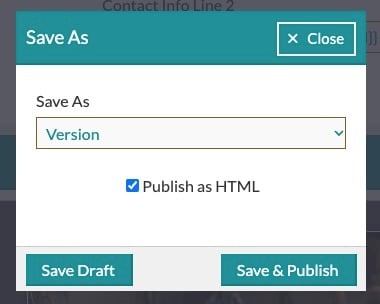
- Click the 'Save and Publish' button. You will see the option to save the Proposal as an HTML version or a PDF by checking or unchecking the box as shown below. HTML versions will retain image quality, while PDF versions will compress images.
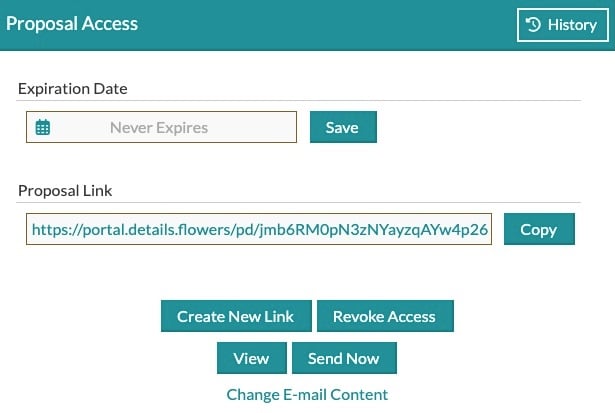
- Once the Proposal is generated, the page will reload, and you will see your Proposal link on the right.
- As a best practice, we always recommend that you click the 'View' button to view your contract before you email it to your client. When you do this, you see it just as your client will. It's a great way to find any things that might need adjusting before you send it off!
- Lastly, copy and paste the link into your own email and send it to your client, or use the 'Send Now' option to send the Proposal to your primary contact through Details.
Special Notes:
- The link does not change each time you Save and Publish. It will only change if you click the "Create New Link" button.
- When you Save and Publish, the link is automatically directed to the newest version.
- Your client will not receive any notifications that a proposal has been published or that you Saved and Published a new version. This will all need to be completed via your communication with them.