
Inventory Conflict Alerts provide real-time visibility into your inventory levels, ensuring you never overpromise on an item. If an event requires more inventory than you have available during a specific timeframe, an alert will automatically appear the moment you access the Worksheet page.
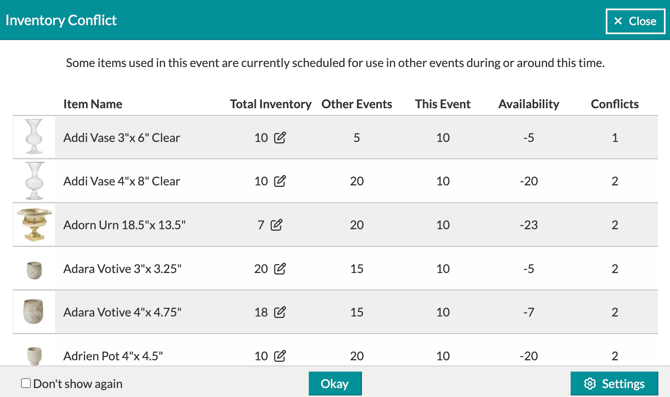
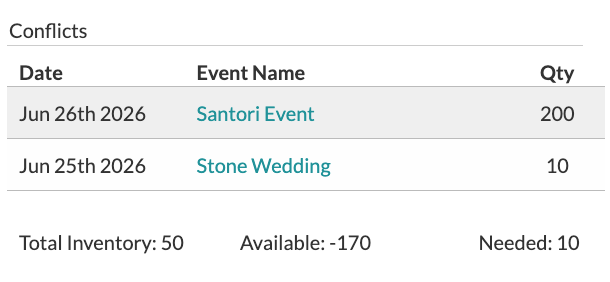
The alert window provides a side-by-side comparison of your inventory and your commitments. For every item in conflict, you can instantly view:
-
Total Inventory: Your current total stock count.
-
Quantity in Use: How many units are already committed to other concurrent events.
-
Current Availability: What is actually left for this specific event.
-
Shortage Amount: Exactly how many more units you need to fulfill the request.
You don’t need to navigate away to fix a discrepancy. If your physical inventory has changed, you can update your total inventory count directly within the alert box to resolve the conflict on the spot.
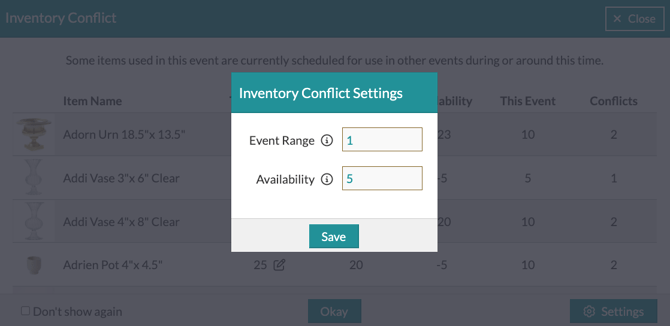
You can tailor these alerts to your specific workflow by adjusting the Settings located in the bottom-right corner of the alert window. This area allows you to define a specific date range, or threshold, for the system to monitor. By choosing how many days before and after your current event the system should scan, you can ensure you have enough breathing room for prep and transit.
For instance, entering '1' in the setting box instructs the system to check for inventory commitments on the day before and the day after your event. While this is set to '1' by default, you can update this number at any time to better reflect your team’s turnaround needs.
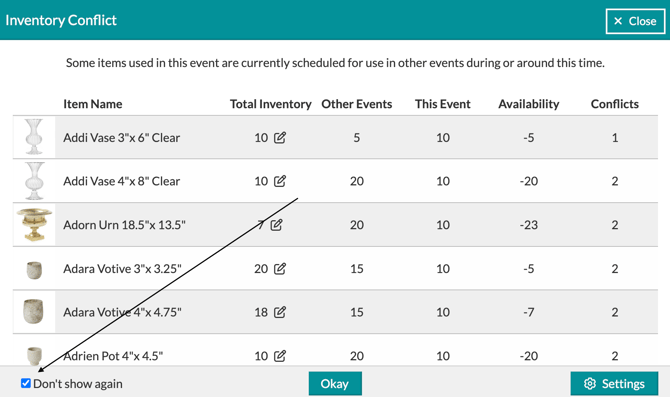
Once you have reviewed the information and made any adjustments needed, you can close out the box. If you would like to prevent the box from popping up again when accessing the event, make sure to click the Don't Show Again checkbox in the bottom-right corner before closing.
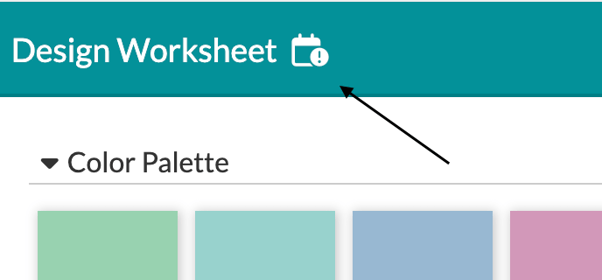
Once the box is closed, you can reopen it any time by clicking the icon next to the 'Design Worksheet' heading at the top of the Worksheet.
Conflicting items are easily identified within your Worksheet recipes by a red conflict icon appearing next to the item name. Clicking this icon opens a detailed pop-up that outlines the specific conflict information for that item.
You will also find this same red indicator within the Items Used panel, which can be accessed through the Menu button on the Design Board, ensuring you are alerted to inventory issues regardless of which view you are working in.
Have a question about Inventory Conflicts? Reach out to our team at support@detailsflowers.com for further assistance!