---
title: "Zapier: Log payments made via QuickBooks in Details Flowers"
description: If you use QuickBooks as your main invoicing application, this Zap is perfect for you! With this Zap, you're able to log QuickBooks made payments in Details Flowers.
---
[Skip to content](https://support.detailsflowers.com/en/log-payments-made-via-quickbooks-in-details-flowers#main-content)

- Details University
Show submenu for Details University
- [Video Tutorials](https://info.detailsflowers.com/video-tutorials)
- [15-Minute Meeting](https://meetings.hubspot.com/details-flowers/meet-with-details-support-free)
- [Details Check-In](https://meetings.hubspot.com/details-flowers/details-check-in-50)
- [Details University I](https://meetings.hubspot.com/details-flowers/details-university-i-50)
- [Details University II](https://meetings.hubspot.com/details-flowers/details-university-ii-75)
- [New Employee Orientation](https://meetings.hubspot.com/details-flowers/new-employee-orientation-50)
- Community
Show submenu for Community
- [Join Our FB Group](https://www.facebook.com/groups/detailsflowers)
- [\[Sign In\]](https://details.flowers/)
Open main navigation
Close main navigation
- Details University
Show submenu for Details University
- [Video Tutorials](https://info.detailsflowers.com/video-tutorials)
- [15-Minute Meeting](https://meetings.hubspot.com/details-flowers/meet-with-details-support-free)
- [Details Check-In](https://meetings.hubspot.com/details-flowers/details-check-in-50)
- [Details University I](https://meetings.hubspot.com/details-flowers/details-university-i-50)
- [Details University II](https://meetings.hubspot.com/details-flowers/details-university-ii-75)
- [New Employee Orientation](https://meetings.hubspot.com/details-flowers/new-employee-orientation-50)
- Community
Show submenu for Community
- [Join Our FB Group](https://www.facebook.com/groups/detailsflowers)
- [\[Sign In\]](https://details.flowers/)
- [Email Us](mailto:support@detailsflowers.com)
[Email Us](mailto:support@detailsflowers.com)
Welcome to the Details Knowledge Base! How can we help you?
- There are no suggestions because the search field is empty.
1. [Details Flowers Knowledge Base](https://support.detailsflowers.com/en?hsLang=en)
2. [Zapier](https://support.detailsflowers.com/en/zapier?hsLang=en)
3. [Financials](https://support.detailsflowers.com/en/zapier?hsLang=en#financials)
# Zapier: Log payments made via QuickBooks in Details Flowers
## If you use QuickBooks as your main invoicing application, this Zap is perfect for you! With this Zap, you're able to log QuickBooks made payments in Details Flowers.
Before you get started, it is essential that you set up this Zap: [Create a new invoice in Quickbooks](https://support.detailsflowers.com/create-a-new-invoice-in-quickbooks?hsLang=en). Why? Details Flowers uses something called the '**Event ID**'. The Event ID is how Details Flowers and QuickBooks can communicate back and forth (in other words, it is the identifier than ensures your payments go to the correct client record!)
When Details Flowers creates a new invoice in QuickBooks (via Zapier) we use the Event ID as the invoice number. For this Zap to work, the invoice in QuickBooks *must be made via Zapier.*
**Note***: This is not retroactive and will only apply to events you created after implementing this Zap.*
#### Trigger:
First, click the **Make a Zap** button within your account. For the Trigger, search for QuickBooks Online. Make sure to select New Payment as your
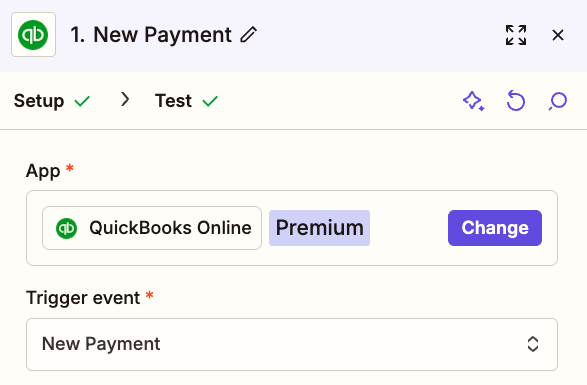Click Continue and then Test Step on the resulting screen. This will pull in recently made payments within your QuickBooks account. Select the one you would like to use and click Continue.
💡Make sure the payment record you select has a corresponding event in Details, and the Invoice for that event was created in QuickBooks using the Create A New Invoice in QuickBooks Zap.
If you use your Quickbooks Account to process more than just payments for Details Events, we recommend to add a filter step to your Zap. This will prevent the Zap from erroring, when it tries to log a payment from QuickBooks to Zapier that does not apply to a Details event.
To add this step, click the + symbol and select 'Filter by Zapier' as your action. In the **Only Continue If** section of the **Configure & test** tab, set the field to **Line Invoice Doc Number**.
Next, select **(Text) Contains** from the Drop-Down menu and type **Details-** in the last field.
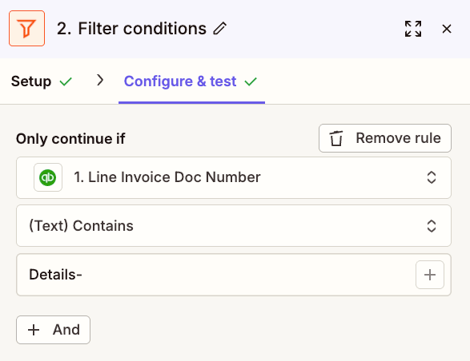
Now, only events with a Details Invoice Number will continue to the final step of logging the payment in Details!
#### Action:
In your Action App, find **Details Flowers**, then use the **Create Payment Record** Action Step.
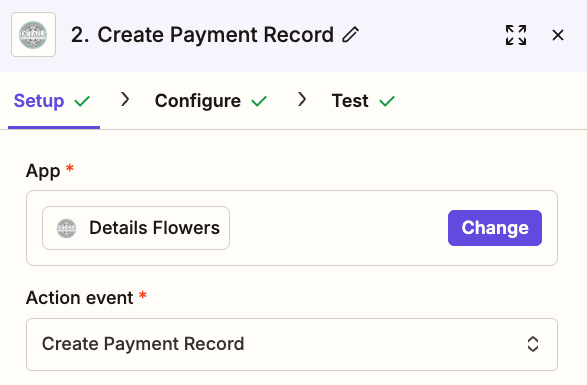
On the Configure tab of your action step, set the **Find Type** field to **Event ID** and then add the **Line Invoice Doc Number** data point from step 1 in the **Event ID** field using the + symbol.
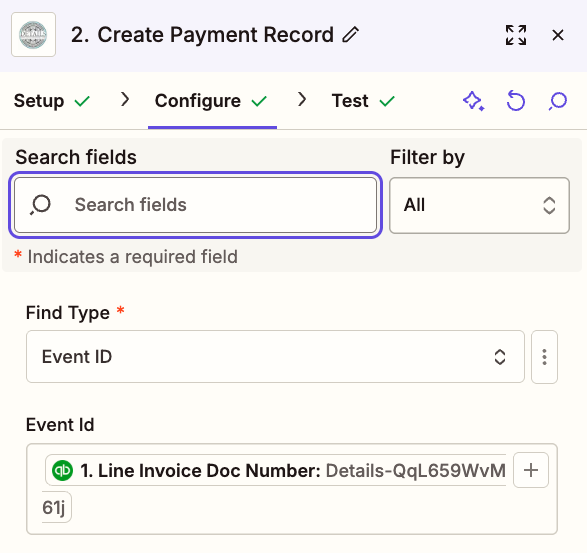
Next, add the **Date**, **Amount**, and **Description** fields as shown below.
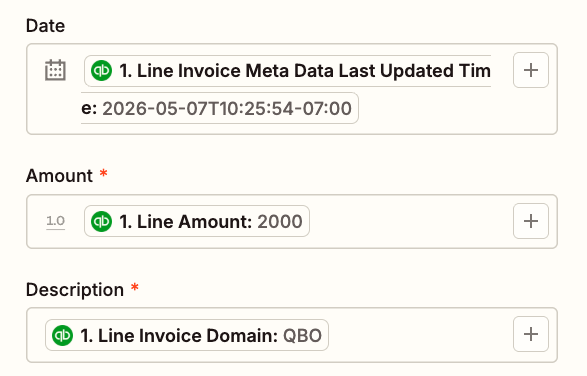
- **Date -** use the **Line Invoice Meta Data Last Updated Time** data point
- **Amount -** use the **Line Amount** data point
- **Description -** use the **Line Invoice Domain** data point.
These data points will be selected from step 1 using the **+** symbol for each line.
Finally, you will click **Continue**, then select the **Test Step** on the resulting screen. If no errors are present, click Publish to finalize your zap.
Have questions? Reach out to our support team at support@detailsflowers.com and we would be happy to assist you!
- [Getting Started With Details](https://support.detailsflowers.com/en/getting-started-with-details?hsLang=en#main-content)
- [Account Set Up](https://support.detailsflowers.com/en/getting-started-with-details?hsLang=en#account-set-up)
- [Education & Learning](https://support.detailsflowers.com/en/education-learning?hsLang=en#main-content)
- [Supporting Documents](https://support.detailsflowers.com/en/education-learning?hsLang=en#supporting-documents)
- [Event Financials/Invoicing](https://support.detailsflowers.com/en/education-learning?hsLang=en#event-financials-invoicing)
- [Event Details](https://support.detailsflowers.com/en/education-learning?hsLang=en#event-details)
- [Reports](https://support.detailsflowers.com/en/education-learning?hsLang=en#reports)
- [Form Builder](https://support.detailsflowers.com/en/education-learning?hsLang=en#form-builder)
- [Resource Galleries (Inspiration, Recipe, and Item)](https://support.detailsflowers.com/en/education-learning?hsLang=en#resource-galleries-inspiration-recipe-and-item)
- [The Proposal](https://support.detailsflowers.com/en/education-learning?hsLang=en#the-proposal)
- [Costs/RFQ](https://support.detailsflowers.com/en/education-learning?hsLang=en#costs-rfq)
- [The Event List](https://support.detailsflowers.com/en/education-learning?hsLang=en#the-event-list)
- [Client Information](https://support.detailsflowers.com/en/education-learning?hsLang=en#client-information)
- [The Design Board](https://support.detailsflowers.com/en/education-learning?hsLang=en#the-design-board)
- [Tools/Features](https://support.detailsflowers.com/en/education-learning?hsLang=en#tools-features)
- [The Design Worksheet & Recipes](https://support.detailsflowers.com/en/education-learning?hsLang=en#the-design-worksheet-recipes)
- [Company Settings](https://support.detailsflowers.com/en/education-learning?hsLang=en#company-settings)
- [Client Portal](https://support.detailsflowers.com/en/education-learning?hsLang=en#client-portal)
- [Emails](https://support.detailsflowers.com/en/emails?hsLang=en)
- [Details Direct](https://support.detailsflowers.com/en/details-direct?hsLang=en)
- [Account Information](https://support.detailsflowers.com/en/account-information?hsLang=en#main-content)
- [Analytics & Reports](https://support.detailsflowers.com/en/account-information?hsLang=en#analytics-reports)
- [Billing & Subscription](https://support.detailsflowers.com/en/account-information?hsLang=en#billing-subscription)
- [General Account Information](https://support.detailsflowers.com/en/account-information?hsLang=en#general-account-information)
- [Support](https://support.detailsflowers.com/en/account-information?hsLang=en#support)
- [Zapier](https://support.detailsflowers.com/en/zapier?hsLang=en#main-content)
- [Financials](https://support.detailsflowers.com/en/zapier?hsLang=en#financials)
- [About Zapier](https://support.detailsflowers.com/en/zapier?hsLang=en#about-zapier)
- [Project/Task Applications](https://support.detailsflowers.com/en/zapier?hsLang=en#project-task-applications)
- [Calendar Applications](https://support.detailsflowers.com/en/zapier?hsLang=en#calendar-applications)
- [Troubleshooting](https://support.detailsflowers.com/en/troubleshooting?hsLang=en#main-content)
- [The Worksheet](https://support.detailsflowers.com/en/troubleshooting?hsLang=en#the-worksheet)
- [Costs/RFQ/Orders](https://support.detailsflowers.com/en/troubleshooting?hsLang=en#costs-rfq-orders)
- [The Event List](https://support.detailsflowers.com/en/troubleshooting?hsLang=en#the-event-list)
- [Payments/Invoicing](https://support.detailsflowers.com/en/troubleshooting?hsLang=en#payments-invoicing)
- [General](https://support.detailsflowers.com/en/troubleshooting?hsLang=en#general)
- [The Proposal](https://support.detailsflowers.com/en/troubleshooting?hsLang=en#the-proposal)
- [The Resources](https://support.detailsflowers.com/en/troubleshooting?hsLang=en#the-resources)
- [Videos](https://support.detailsflowers.com/en/videos?hsLang=en#main-content)
- [Ordering & Invoicing](https://support.detailsflowers.com/en/videos?hsLang=en#ordering-invoicing)
- [Resource Galleries](https://support.detailsflowers.com/en/videos?hsLang=en#resource-galleries)
- [Creating Events](https://support.detailsflowers.com/en/videos?hsLang=en#creating-events)
- [Useful Features](https://support.detailsflowers.com/en/videos?hsLang=en#useful-features)
- About
- [Home](https://detailsflowers.com/)
- [Details Direct](https://info.detailsflowers.com/details-direct)
- [About Us](https://detailsflowers.com/about)
- [Features](https://info.detailsflowers.com/features)
- [Plans & Pricing](https://info.detailsflowers.com/plans)
- [Testimonials](https://info.detailsflowers.com/testimonials)
- [Press](https://info.detailsflowers.com/press)
- [Media](https://info.detailsflowers.com/media)
- Details University
- [Listen on Spotify](https://info.detailsflowers.com/masterclasses)
- [Classes](https://info.detailsflowers.com/details-university)
- [Demo](https://meetings.hubspot.com/details-flowers/demo)
- [FAQs](https://info.detailsflowers.com/faqs)
- [Careers](https://info.detailsflowers.com/careers-0)
- [Internships](https://info.detailsflowers.com/internships)
- Community
- [Blog](https://blog.detailsflowers.com/blog)
- [Our Partners](https://info.detailsflowers.com/partners)
- [Become a Partner](https://info.detailsflowers.com/become-a-partner)
- [Join Our FB Group](https://www.facebook.com/groups/detailsflowers/)
- Members
- [User Agreement](https://info.detailsflowers.com/user_agreement)
- [Privacy Policy](https://info.detailsflowers.com/privacy_policy)
- [Newsletter Sign Up](https://share.hsforms.com/11p2kVvqiRxSfZcPttN6mTw21epl)
- [Update Email Preferences](https://info.detailsflowers.com/resubscribe-to-important-updates)
[](https://info.detailsflowers.com/?hsLang=en)

**Details is a platform that helps florists and designers do more and earn more. Our software streamlines proposals, ensures clients are profitable down to each arrangement, and simplifies the payment process. Suppliers benefit too, with additional business from in-network florists, volume predictability, and greater customer loyalty.**
**[](https://www.facebook.com/detailsflowers) [](https://www.instagram.com/detailsflowers/) [](https://www.youtube.com/@Detailsflowers) [](https://www.linkedin.com/company/10633597/)[](https://www.tiktok.com/@details.flowers.software)**
- About
- [Home](https://detailsflowers.com)
- [Details Direct](https://info.detailsflowers.com/details-direct?hsLang=en)
- [About Us](https://detailsflowers.com/about)
- [Features](https://info.detailsflowers.com/features?hsLang=en)
- [Plans & Pricing](https://info.detailsflowers.com/plans?hsLang=en)
- [Testimonials](https://info.detailsflowers.com/testimonials?hsLang=en)
- [Press](https://info.detailsflowers.com/press?hsLang=en)
- [Media](https://info.detailsflowers.com/media?hsLang=en)
- Details University
- [Listen on Spotify](https://info.detailsflowers.com/masterclasses?hsLang=en)
- [Classes](https://info.detailsflowers.com/details-university?hsLang=en)
- [Demo](https://meetings.hubspot.com/details-flowers/demo)
- [FAQs](https://info.detailsflowers.com/faqs?hsLang=en)
- [Careers](https://info.detailsflowers.com/careers-0?hsLang=en)
- [Internships](https://info.detailsflowers.com/internships?hsLang=en)
- Community
- [Blog](https://blog.detailsflowers.com/blog?hsLang=en)
- [Our Partners](https://info.detailsflowers.com/partners?hsLang=en)
- [Become a Partner](https://info.detailsflowers.com/become-a-partner?hsLang=en)
- [Join Our FB Group](https://www.facebook.com/groups/detailsflowers/)
- Members
- [User Agreement](https://info.detailsflowers.com/user_agreement?hsLang=en)
- [Privacy Policy](https://info.detailsflowers.com/privacy_policy?hsLang=en)
- [Newsletter Sign Up](https://share.hsforms.com/11p2kVvqiRxSfZcPttN6mTw21epl)
- [Update Email Preferences](https://info.detailsflowers.com/resubscribe-to-important-updates?hsLang=en)
Contact Us
[hello@detailsflowers.com](mailto:hello@detailsflowers.com)
386.255.9594
307 W. Granada Blvd. Suite 2010
Ormond Beach, FL 32174
[Schedule An Intro Call](https://calendly.com/the-details-sales-team/introductory-call-15-minutes)