---
title: "Zapier: Create a new invoice in Quickbooks (Step 1)"
description: With Details Flowers, Quickbooks, and Zapier, you can cross the task of creating a new invoice for your client with a few clicks!
---
[Skip to content](https://support.detailsflowers.com/en/create-a-new-invoice-in-quickbooks#main-content)

- Details University
Show submenu for Details University
- [Video Tutorials](https://info.detailsflowers.com/video-tutorials)
- [15-Minute Meeting](https://meetings.hubspot.com/details-flowers/meet-with-details-support-free)
- [Details Check-In](https://meetings.hubspot.com/details-flowers/details-check-in-50)
- [Details University I](https://meetings.hubspot.com/details-flowers/details-university-i-50)
- [Details University II](https://meetings.hubspot.com/details-flowers/details-university-ii-75)
- [New Employee Orientation](https://meetings.hubspot.com/details-flowers/new-employee-orientation-50)
- Community
Show submenu for Community
- [Join Our FB Group](https://www.facebook.com/groups/detailsflowers)
- [\[Sign In\]](https://details.flowers/)
Open main navigation
Close main navigation
- Details University
Show submenu for Details University
- [Video Tutorials](https://info.detailsflowers.com/video-tutorials)
- [15-Minute Meeting](https://meetings.hubspot.com/details-flowers/meet-with-details-support-free)
- [Details Check-In](https://meetings.hubspot.com/details-flowers/details-check-in-50)
- [Details University I](https://meetings.hubspot.com/details-flowers/details-university-i-50)
- [Details University II](https://meetings.hubspot.com/details-flowers/details-university-ii-75)
- [New Employee Orientation](https://meetings.hubspot.com/details-flowers/new-employee-orientation-50)
- Community
Show submenu for Community
- [Join Our FB Group](https://www.facebook.com/groups/detailsflowers)
- [\[Sign In\]](https://details.flowers/)
- [Email Us](mailto:support@detailsflowers.com)
[Email Us](mailto:support@detailsflowers.com)
Welcome to the Details Knowledge Base! How can we help you?
- There are no suggestions because the search field is empty.
1. [Details Flowers Knowledge Base](https://support.detailsflowers.com/en?hsLang=en)
2. [Zapier](https://support.detailsflowers.com/en/zapier?hsLang=en)
3. [Financials](https://support.detailsflowers.com/en/zapier?hsLang=en#financials)
# Zapier: Create a new invoice in Quickbooks (Step 1)
## With Details Flowers, Quickbooks, and Zapier, you can cross the task of creating a new invoice for your client with a few clicks!
We've outlined the general steps for you below, but please note there are a few different ways you might choose to set up your zap.
**Note***: This is not retroactive and will only apply to events you created after implementing this Zap.*
#### **Trigger**
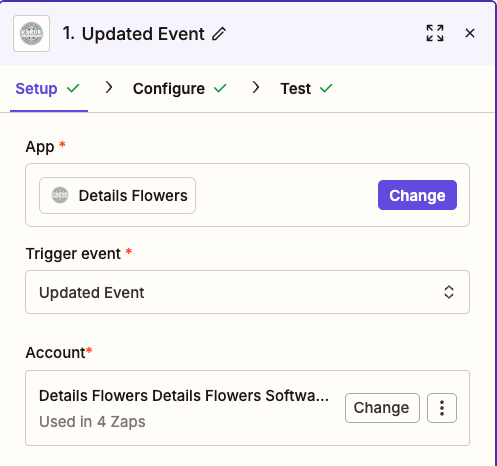
- First, click the **Make a Zap** button.
- In the search bar, type in **Details Flowers** and select it as your trigger app.
- Click **Updated Event** and then **Save + Continue**.
- If you have not already connected your Details account, click the **Connect an Account** button and follow the prompts. Otherwise, it will pull up your Details account - click **Save + Continue**.
Here on the **Edit Options** step of setting up your trigger is where you get to customize this Zap to your specific need. You'll need to decide what causes Zapier to create a new invoice in QuickBooks, and it's primarily driven by two things: [state and status](https://support.detailsflowers.com/event-state-status?hsLang=en).
Since this is where you'll customize your Zap, this is also where things become pretty open-ended. To help you understand how this will work, we'll go through an example of one of the many ways you can set this particular Zap up.
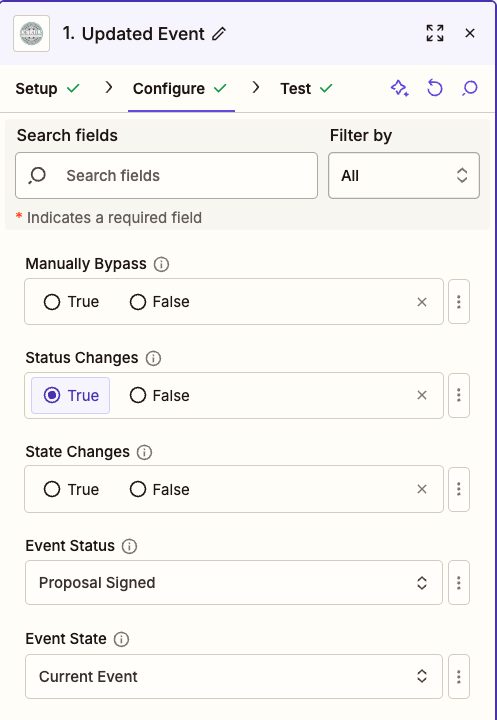
- For the **Manually Bypass** option, keep it as **No**
- For the **Status Changes** option, select **Yes**
- Click the **Continue**.
- A sample will be pulled in from Details and automatically selected. Click **Continue** to complete the trigger portion of this Zap.
#### Adding a Filter Step
In the next step, you will need to add a 'Filter By Zapier' action
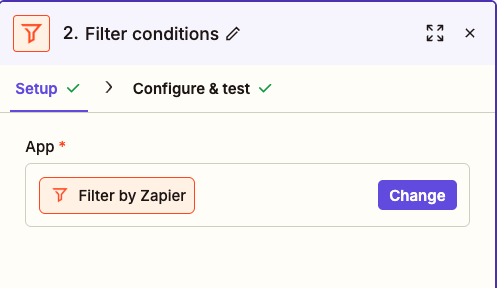
Next, hit the 'Continue' button. From there, you will fill in the associated information for the filter:
Only continue if
- **Event Status** - chose this from the first drop-down menu
- **(Text) Exactly Matches** - chose this from the second drop-down
- In the third field, you will type in **'Proposal-Signed'**
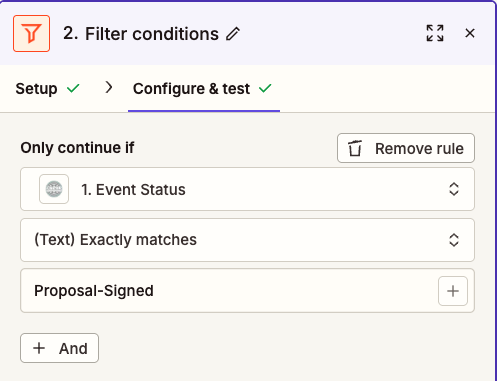
Make sure to test this step!
#### Adding a Search Step
For Details Flowers to add a new invoice to QuickBooks, it will need to attach it to an existing customer or create a new one. This is where the search step comes in handy.
- First, we need to add the Action Step. Click to add.
- Select **QuickBooks Online** as the Action App.
- To find our action, look under the **Search** section. Click **Find Invoice**.
- Click **Save + Continue**
**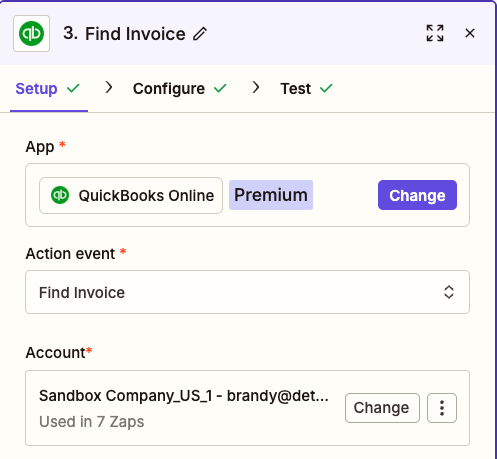**
- You'll be asked to confirm the connected account. If you've not yet connected your account, click the **Connect an Account** button.
- Click **Save + Continue**.
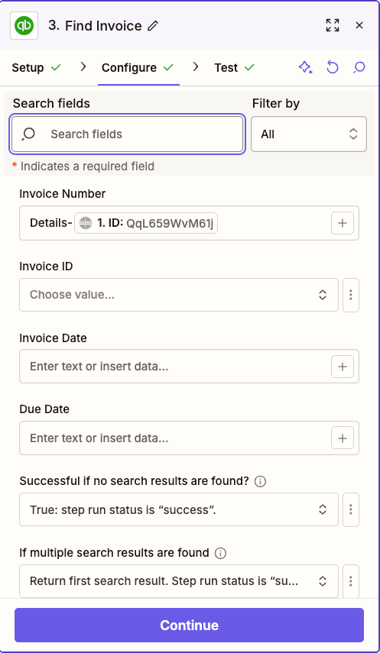
- In the **Configure** tab, ensure you fill in the following fields with the information listed below. For the **Invoice Number** field, make sure to type 'Details-' and then use the '+' symbol to add the data object 'ID' from step one
Adding a Filter Step
The next action will be a **Filter By Zapier** action. In the Configure tab of this action, select the following
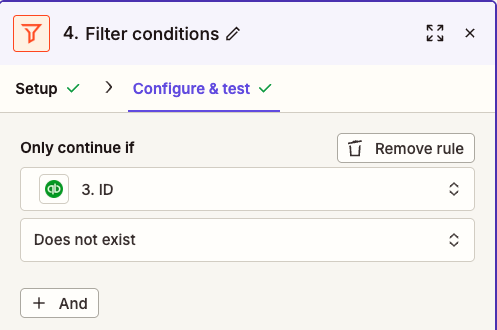
This will tell the zap to only continue if an invoice does not already exist in Quickbooks.
Adding a Formatter Step
From here, we need to format some of our data to fit into later steps properly. Add a step and select **Formatter by Zapier** as the option. In the **Action** drop-down, select **Utilities**.
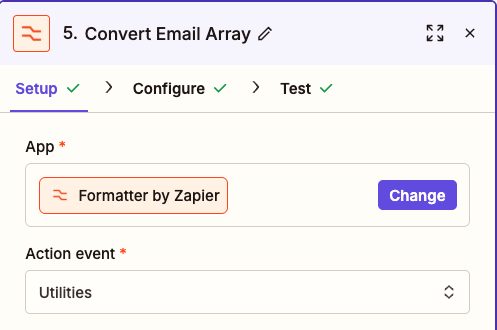
In the **Transform** drop-down menu, select **Line-Item to Text**. Click the '**+**' symbol on the Input field to select the **Contacts Email** data option from step 1. Leave the **Separator** field blank and click Continue.
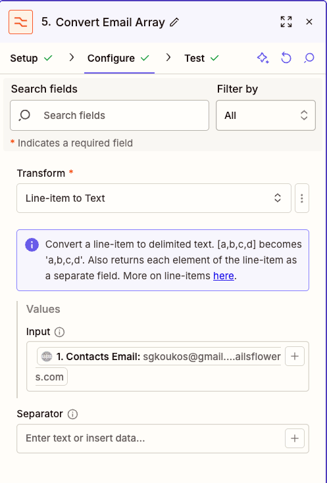
On the resulting tab, click **Test Step**. You should now see each email as its only data point (if you have multiple emails used on the test event you selected in step 1).
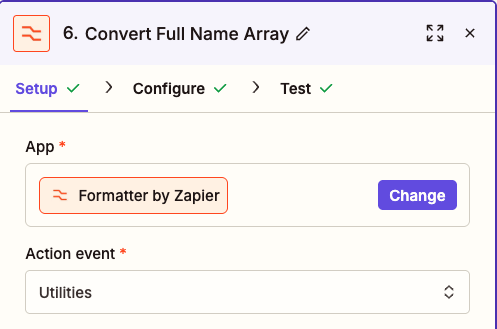
Now we will add one more **Formatter by Zapier** step. This will also be a **Utilities** step, so select Utilities from the **Action Event** drop-down menu
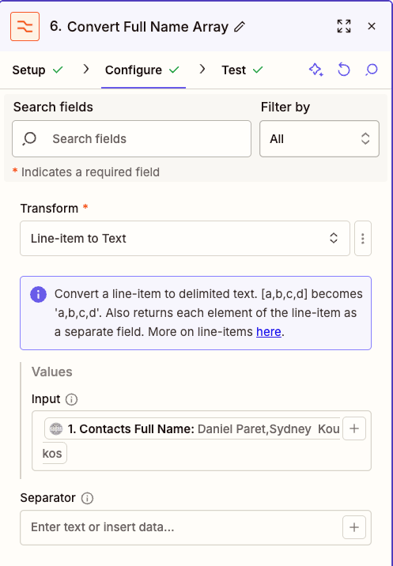
On the Configure tab, fill in the following information, similar to how we did in the previous step:
Adding a QuickBooks Find Customer Step
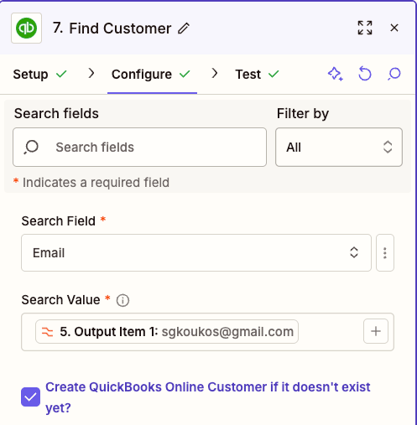
For your next step, add a QuickBooks Find Customer step. Search for QuickBooks Online and select 'Find Customer' as the Action
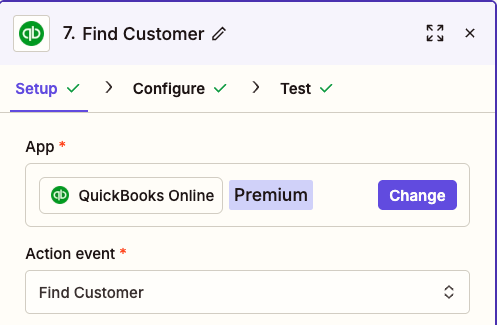
In the **Configure** tab, set the **Search Field** to **'Email'** and the **Search Value** to **Output Item 1** from step number 5, as shown below. Make sure to check the **Create QuickBooks Online Customer if it doesn't exist yet**.
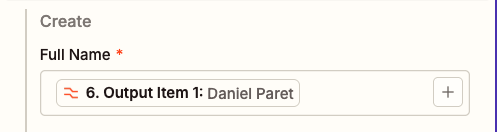
Youwill now se a Create section to start adding in data. In the FullName field, put Output Item 1 from step 6. This should be your First client on the event's full name.
Next, make sure to fill in the Client Email in the **Email** field using the **Output Item 1** from step 5, along with any other information you wish to include (address, phone number, etc.)
Click **Continue** and **Test Step** on the resulting screen.
#### Action
Finally, you will need to outline the invoice you would like created. Click to add another Action Step. Once again, select QuickBooks Online as your Action App. Click **Continue**.
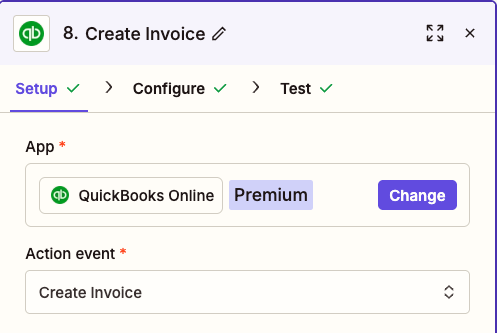
Select **Create Invoice** as the action and click **Continue.**
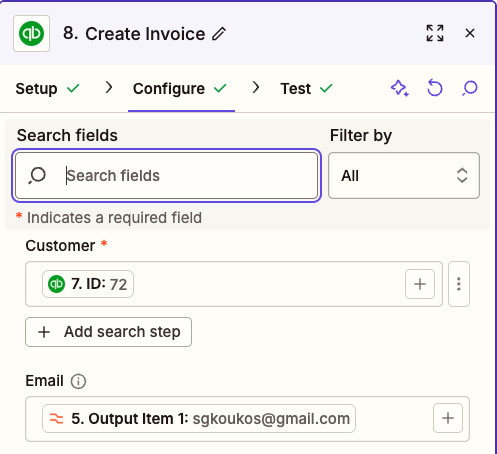
In the **Configure** tab, you will start with the **Customer** field and use the + symbol to select the **ID** data point from step 7. Below that, add your client's email using **Output Item 1** from step 5.
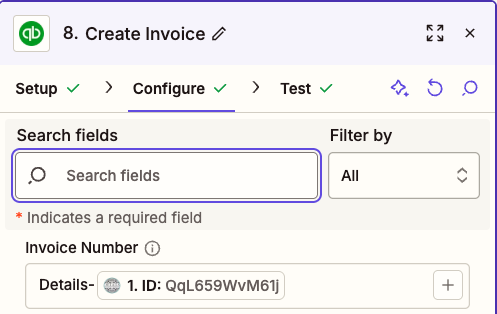
In the **Invoice Number** field, type **Details-** and then use the + symbol to select the **ID** data point from step 1.
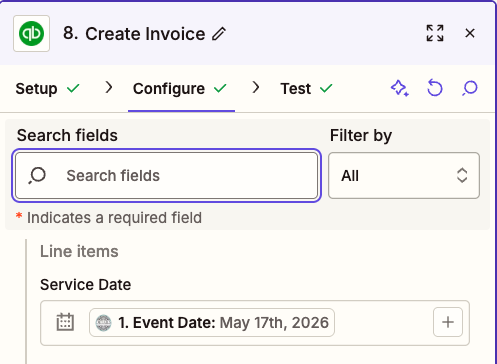
In the **Line Items** section, add the **Event Date** to the **Service Date** field using the + and selecting the **Event Date** data from step 1.
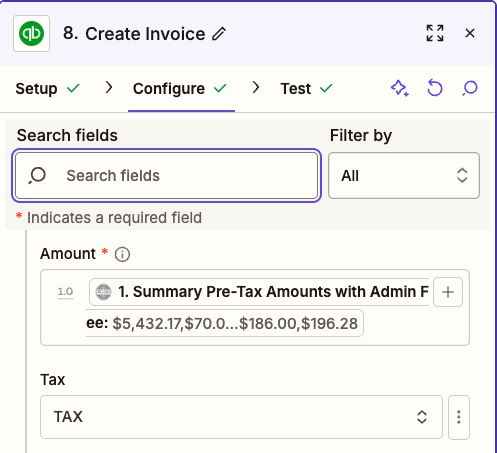
In the **Amount** field, add the **Summary Pre-Tax Amounts with Admin Fee** data point from step 1 using the + symbol. Make sure the **Tax field** is set to **TAX**.
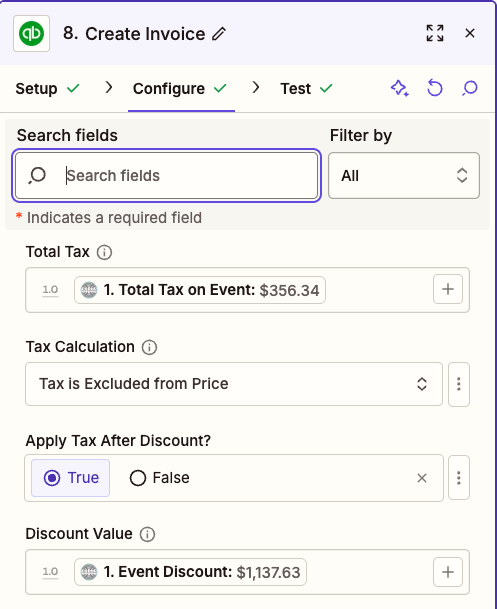
In the **Total Tax** field put the **Total Event Tax** data point from step 1 using the + symbol. We also recommend adding the **Event Discount** data point to the **Discount Value** field, in case some events include a discount. The **Tax Calculation** field should also be set to **Tax is Excluded from Price**.
Click **Continue** and make sure to **Test Step** on the next screen. Once the test invoice has been sent to your QuickBooks account, ensure everything is accurate, and then click 'Publish' in Zapier to publish the zap!
Have questions or need assistance? Reach out to our team at support@detailsflowers.com and we will be happy to help.
- [Getting Started With Details](https://support.detailsflowers.com/en/getting-started-with-details?hsLang=en#main-content)
- [Account Set Up](https://support.detailsflowers.com/en/getting-started-with-details?hsLang=en#account-set-up)
- [Education & Learning](https://support.detailsflowers.com/en/education-learning?hsLang=en#main-content)
- [Supporting Documents](https://support.detailsflowers.com/en/education-learning?hsLang=en#supporting-documents)
- [Event Financials/Invoicing](https://support.detailsflowers.com/en/education-learning?hsLang=en#event-financials-invoicing)
- [Event Details](https://support.detailsflowers.com/en/education-learning?hsLang=en#event-details)
- [Reports](https://support.detailsflowers.com/en/education-learning?hsLang=en#reports)
- [Form Builder](https://support.detailsflowers.com/en/education-learning?hsLang=en#form-builder)
- [Resource Galleries (Inspiration, Recipe, and Item)](https://support.detailsflowers.com/en/education-learning?hsLang=en#resource-galleries-inspiration-recipe-and-item)
- [The Proposal](https://support.detailsflowers.com/en/education-learning?hsLang=en#the-proposal)
- [Costs/RFQ](https://support.detailsflowers.com/en/education-learning?hsLang=en#costs-rfq)
- [The Event List](https://support.detailsflowers.com/en/education-learning?hsLang=en#the-event-list)
- [Client Information](https://support.detailsflowers.com/en/education-learning?hsLang=en#client-information)
- [The Design Board](https://support.detailsflowers.com/en/education-learning?hsLang=en#the-design-board)
- [Tools/Features](https://support.detailsflowers.com/en/education-learning?hsLang=en#tools-features)
- [The Design Worksheet & Recipes](https://support.detailsflowers.com/en/education-learning?hsLang=en#the-design-worksheet-recipes)
- [Company Settings](https://support.detailsflowers.com/en/education-learning?hsLang=en#company-settings)
- [Client Portal](https://support.detailsflowers.com/en/education-learning?hsLang=en#client-portal)
- [Emails](https://support.detailsflowers.com/en/emails?hsLang=en)
- [Details Direct](https://support.detailsflowers.com/en/details-direct?hsLang=en)
- [Account Information](https://support.detailsflowers.com/en/account-information?hsLang=en#main-content)
- [Analytics & Reports](https://support.detailsflowers.com/en/account-information?hsLang=en#analytics-reports)
- [Billing & Subscription](https://support.detailsflowers.com/en/account-information?hsLang=en#billing-subscription)
- [General Account Information](https://support.detailsflowers.com/en/account-information?hsLang=en#general-account-information)
- [Support](https://support.detailsflowers.com/en/account-information?hsLang=en#support)
- [Zapier](https://support.detailsflowers.com/en/zapier?hsLang=en#main-content)
- [Financials](https://support.detailsflowers.com/en/zapier?hsLang=en#financials)
- [About Zapier](https://support.detailsflowers.com/en/zapier?hsLang=en#about-zapier)
- [Project/Task Applications](https://support.detailsflowers.com/en/zapier?hsLang=en#project-task-applications)
- [Calendar Applications](https://support.detailsflowers.com/en/zapier?hsLang=en#calendar-applications)
- [Troubleshooting](https://support.detailsflowers.com/en/troubleshooting?hsLang=en#main-content)
- [The Worksheet](https://support.detailsflowers.com/en/troubleshooting?hsLang=en#the-worksheet)
- [Costs/RFQ/Orders](https://support.detailsflowers.com/en/troubleshooting?hsLang=en#costs-rfq-orders)
- [The Event List](https://support.detailsflowers.com/en/troubleshooting?hsLang=en#the-event-list)
- [Payments/Invoicing](https://support.detailsflowers.com/en/troubleshooting?hsLang=en#payments-invoicing)
- [General](https://support.detailsflowers.com/en/troubleshooting?hsLang=en#general)
- [The Proposal](https://support.detailsflowers.com/en/troubleshooting?hsLang=en#the-proposal)
- [The Resources](https://support.detailsflowers.com/en/troubleshooting?hsLang=en#the-resources)
- [Videos](https://support.detailsflowers.com/en/videos?hsLang=en#main-content)
- [Ordering & Invoicing](https://support.detailsflowers.com/en/videos?hsLang=en#ordering-invoicing)
- [Resource Galleries](https://support.detailsflowers.com/en/videos?hsLang=en#resource-galleries)
- [Creating Events](https://support.detailsflowers.com/en/videos?hsLang=en#creating-events)
- [Useful Features](https://support.detailsflowers.com/en/videos?hsLang=en#useful-features)
- About
- [Home](https://detailsflowers.com/)
- [Details Direct](https://info.detailsflowers.com/details-direct)
- [About Us](https://detailsflowers.com/about)
- [Features](https://info.detailsflowers.com/features)
- [Plans & Pricing](https://info.detailsflowers.com/plans)
- [Testimonials](https://info.detailsflowers.com/testimonials)
- [Press](https://info.detailsflowers.com/press)
- [Media](https://info.detailsflowers.com/media)
- Details University
- [Listen on Spotify](https://info.detailsflowers.com/masterclasses)
- [Classes](https://info.detailsflowers.com/details-university)
- [Demo](https://meetings.hubspot.com/details-flowers/demo)
- [FAQs](https://info.detailsflowers.com/faqs)
- [Careers](https://info.detailsflowers.com/careers-0)
- [Internships](https://info.detailsflowers.com/internships)
- Community
- [Blog](https://blog.detailsflowers.com/blog)
- [Our Partners](https://info.detailsflowers.com/partners)
- [Become a Partner](https://info.detailsflowers.com/become-a-partner)
- [Join Our FB Group](https://www.facebook.com/groups/detailsflowers/)
- Members
- [User Agreement](https://info.detailsflowers.com/user_agreement)
- [Privacy Policy](https://info.detailsflowers.com/privacy_policy)
- [Newsletter Sign Up](https://share.hsforms.com/11p2kVvqiRxSfZcPttN6mTw21epl)
- [Update Email Preferences](https://info.detailsflowers.com/resubscribe-to-important-updates)
[](https://info.detailsflowers.com/?hsLang=en)

**Details is a platform that helps florists and designers do more and earn more. Our software streamlines proposals, ensures clients are profitable down to each arrangement, and simplifies the payment process. Suppliers benefit too, with additional business from in-network florists, volume predictability, and greater customer loyalty.**
**[](https://www.facebook.com/detailsflowers) [](https://www.instagram.com/detailsflowers/) [](https://www.youtube.com/@Detailsflowers) [](https://www.linkedin.com/company/10633597/)[](https://www.tiktok.com/@details.flowers.software)**
- About
- [Home](https://detailsflowers.com)
- [Details Direct](https://info.detailsflowers.com/details-direct?hsLang=en)
- [About Us](https://detailsflowers.com/about)
- [Features](https://info.detailsflowers.com/features?hsLang=en)
- [Plans & Pricing](https://info.detailsflowers.com/plans?hsLang=en)
- [Testimonials](https://info.detailsflowers.com/testimonials?hsLang=en)
- [Press](https://info.detailsflowers.com/press?hsLang=en)
- [Media](https://info.detailsflowers.com/media?hsLang=en)
- Details University
- [Listen on Spotify](https://info.detailsflowers.com/masterclasses?hsLang=en)
- [Classes](https://info.detailsflowers.com/details-university?hsLang=en)
- [Demo](https://meetings.hubspot.com/details-flowers/demo)
- [FAQs](https://info.detailsflowers.com/faqs?hsLang=en)
- [Careers](https://info.detailsflowers.com/careers-0?hsLang=en)
- [Internships](https://info.detailsflowers.com/internships?hsLang=en)
- Community
- [Blog](https://blog.detailsflowers.com/blog?hsLang=en)
- [Our Partners](https://info.detailsflowers.com/partners?hsLang=en)
- [Become a Partner](https://info.detailsflowers.com/become-a-partner?hsLang=en)
- [Join Our FB Group](https://www.facebook.com/groups/detailsflowers/)
- Members
- [User Agreement](https://info.detailsflowers.com/user_agreement?hsLang=en)
- [Privacy Policy](https://info.detailsflowers.com/privacy_policy?hsLang=en)
- [Newsletter Sign Up](https://share.hsforms.com/11p2kVvqiRxSfZcPttN6mTw21epl)
- [Update Email Preferences](https://info.detailsflowers.com/resubscribe-to-important-updates?hsLang=en)
Contact Us
[hello@detailsflowers.com](mailto:hello@detailsflowers.com)
386.255.9594
307 W. Granada Blvd. Suite 2010
Ormond Beach, FL 32174
[Schedule An Intro Call](https://calendly.com/the-details-sales-team/introductory-call-15-minutes)