
Adding Items
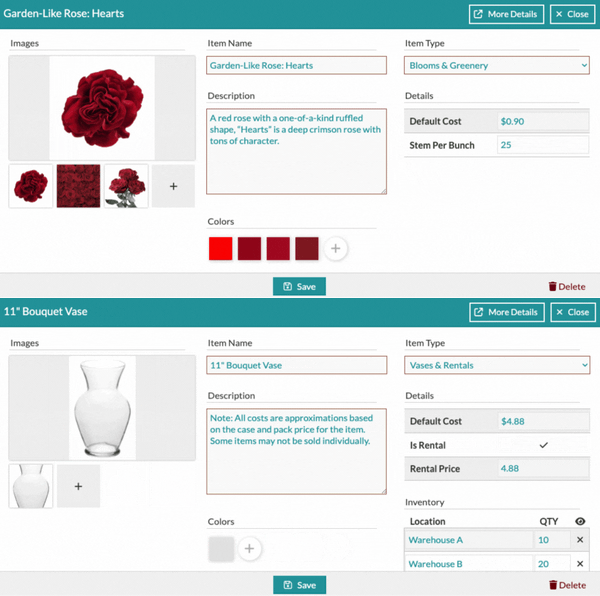
Within any Item Gallery collection, you can use the 'Add New' button in the top right corner to add a 'New Item.' The item editor will allow you to edit a variety of information for the item including:
|
|
|
The information you associate with an item can be used later to help you search for products based on those attributes. Some fields will change dynamically depending on the item type you select.
For example, choosing Blooms & Greenery displays fields for stems per bunch and a default per-stem cost. Selecting Vases & Rentals, on the other hand, provides an option to add a rental price and reveals the Inventory section. The Inventory section enables you to track the location of your inventory and the quantity of each item at each location.
Editing Items
There are two separate views of the items, the Item Modal (as seen above) and the Item Details (continue reading). The first is a quick-view window, the other is a full-page view filled with customization options.
If you're editing in the Item Modal, refer to the instructions above!
💡We and our partners periodically update global items (marked with a gold globe symbol on the 'Table' view or an 'Is Global' checkbox on the Details tab of the Item Modal) to ensure you have the most accurate and up-to-date information.
If you choose to change a global item in your account, please be aware that any future updates we or our partners make to that item will not automatically update in your account. However, if you leave the item as is, any updates we make will automatically reflect for you.
If you're working with the Item Details page, check out this Support Center article: The Item Details